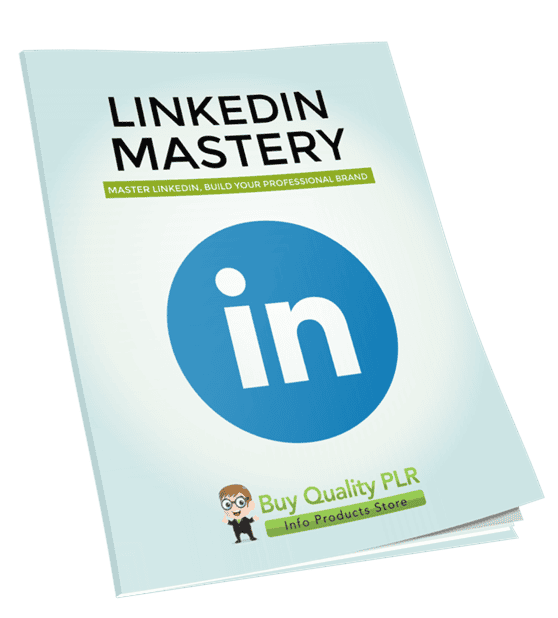
LinkedIn Mastery PLR Course 33k Words
in Linkedin PLR , PLR eCourses , PLR List Building Reports , Premium PLR , Premium PLR Reports , Premium White Label Brandable PLR Coaching Courses , Private Label Rights Products , Social Media PLRChoose Your Desired Option(s)
has been added to your cart!
have been added to your cart!
#linkedinmastery #plrcourse #personalbranding #professionalgrowth #socialmediamarketing #careersuccess #plrcontent #leadgeneration #onlinenetworking
LinkedIn Mastery PLR Course – 33,000 Words
Master LinkedIn, Build Your Professional Brand, and Grow Your Network
In today’s professional world, LinkedIn is more than just a digital resume — it’s your platform for networking, lead generation, and career growth.
The LinkedIn Mastery PLR Course gives you 33,000 words of expertly written, ready-to-use content, designed to help anyone harness the full potential of LinkedIn — whether they want to boost their career, grow a business, or build a personal brand.
With step-by-step modules, actionable strategies, and practical lessons, you’ll be ready to sell, teach, or repurpose this course as a complete PLR product.
Introducing the…
LinkedIn Mastery
Why LinkedIn Mastery Matters
LinkedIn is used by over 900 million professionals worldwide, yet many users fail to leverage it effectively. With LinkedIn Mastery, learners will:
- Create a standout profile that attracts opportunities
- Build a network of high-quality professional contacts
- Share valuable content that positions them as an authority
- Use LinkedIn to generate leads, clients, or job opportunities
For coaches, trainers, or entrepreneurs, this PLR course provides a ready-made resource that can be monetized immediately.
What’s Inside the Course
The course is divided into five detailed modules, guiding learners from the basics to advanced LinkedIn strategies.
Module 1: Getting Started with LinkedIn
Goal: Build the foundation and understand how LinkedIn works.
- Lesson 1: Why LinkedIn Matters for Professionals
Learn how LinkedIn is your ultimate platform for branding, networking, and opportunities. - Lesson 2: Setting Up Your Account Correctly
Create a professional account, choose the right email, and adjust essential settings. - Lesson 3: Navigating the LinkedIn Dashboard
Understand the homepage, notifications, messaging, and key platform features. - Lesson 4: LinkedIn Do’s and Don’ts
Maintain professionalism and avoid common mistakes that can hurt your brand.
Module 2: Building a Powerful LinkedIn Profile
Goal: Create a profile that attracts attention and builds trust.
- Lesson 1: Crafting a Winning Headline and Summary
Write a headline and about section that instantly grabs attention. - Lesson 2: Adding a Professional Profile Photo and Banner
Learn how visuals influence perception and credibility. - Lesson 3: Highlighting Experience, Skills, and Education
Fill these sections strategically to stand out to recruiters and clients. - Lesson 4: Using Keywords for Search Visibility
Optimize your profile with industry keywords for maximum discoverability.
Module 3: Growing and Engaging Your Network
Goal: Build meaningful relationships and expand your professional reach.
- Lesson 1: Sending Connection Requests the Right Way
Write personalized invitations that get accepted. - Lesson 2: Joining and Participating in LinkedIn Groups
Leverage groups to connect with like-minded professionals. - Lesson 3: Commenting and Engaging on Posts
Interact strategically to increase visibility and influence. - Lesson 4: Building Long-Term Relationships
Follow up, nurture connections, and maintain a strong network over time.
Module 4: Creating and Sharing Valuable Content
Goal: Position yourself as an authority by sharing content that matters.
- Lesson 1: Types of Content You Can Post
Explore text posts, articles, videos, polls, and more. - Lesson 2: Writing Engaging Posts That Get Attention
Craft posts that spark engagement and conversations. - Lesson 3: Leveraging Hashtags and Mentions
Boost reach by tagging the right people and using relevant hashtags. - Lesson 4: Consistency and Content Calendar
Plan, schedule, and maintain a consistent posting strategy.
Module 5: Leveraging LinkedIn for Career & Business Growth
Goal: Use LinkedIn strategically to open opportunities.
- Lesson 1: Job Search and Applying Through LinkedIn
Learn to find and apply for jobs directly on the platform. - Lesson 2: Attracting Clients and Business Opportunities
Generate leads and grow your business using LinkedIn effectively. - Lesson 3: Using LinkedIn Analytics
Track profile views, post engagement, and follower growth. - Lesson 4: Building Your Long-Term LinkedIn Strategy
Set goals, measure success, and continuously improve your LinkedIn presence.
By the End of This Course, Learners Will:
✅ Create a professional LinkedIn profile that attracts attention
✅ Build and nurture a high-quality network of connections
✅ Share valuable content consistently to position themselves as experts
✅ Use LinkedIn to advance careers, generate leads, and grow businesses
Bonus Materials
- Checklist – 552 Words: Key steps to optimize profiles, content, and engagement.
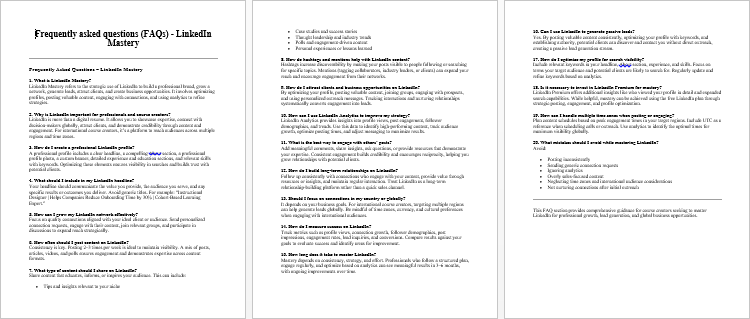
- FAQs – 902 Words: Answer common questions about LinkedIn strategy and networking.
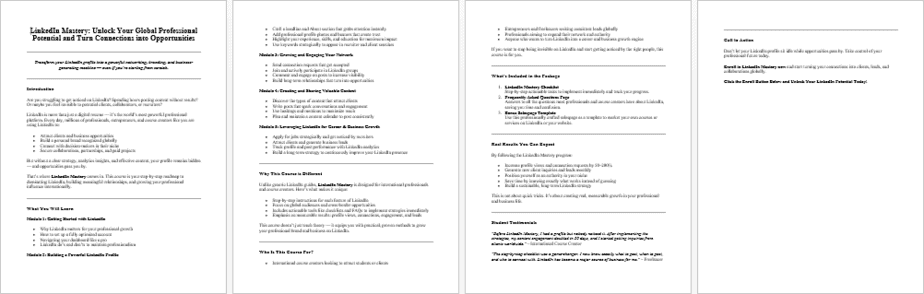
- Salespage – 782 Words: Ready-made, high-converting copy for promotion.
Who Can Benefit
- Professionals seeking career growth and visibility
- Freelancers and entrepreneurs looking to attract clients
- Business coaches and trainers adding LinkedIn mastery to their offerings
- PLR Resellers who want a ready-made course to sell, bundle, or teach
How to Use and Profit from This PLR Course
- Sell as a Complete Course: $297–$497 online or in workshops.
- Break Into Modules or Guides: Sell individual lessons for $10–$20 each.
- Bundle With Other Courses: Offer packages for $47–$97.
- Multi-Week E-Class: Teach a structured 3–6 week LinkedIn program.
- Membership Site Content: Provide weekly lessons to paying members.
- Physical Products: Convert to workbooks, guides, or printed manuals.
- Lead Magnets & Marketing Content: Use excerpts for email campaigns or opt-ins.
- Flip a Niche Site: Build a LinkedIn resource site and sell it fully.
Licensing Terms
Permissions:
- Sell as-is or make minor edits
- Claim copyright if 75%+ is rewritten
- Break into reports, modules, or guides
- Bundle with other PLR content
Restrictions:
- Do not pass PLR rights to customers
- Maximum affiliate commission: 75%
- Cannot give full course away for free
- Cannot include in existing orders without additional purchase
Why Buy from Buy Quality PLR?
- 33,000-word professionally written course ready for resale or teaching
- Step-by-step modules with actionable strategies
- Includes checklist, FAQs, and sales page for instant marketing
- Save months of research, writing, and content creation
- Monetize immediately with digital, membership, or physical products
Bottom Line
The LinkedIn Mastery PLR Course is your ready-made solution to help anyone leverage LinkedIn for professional growth.
Build authority, grow your network, attract opportunities, and monetize this high-demand skill.
Start selling, teaching, or teaching today!
has been added to your cart!
have been added to your cart!
Here A Sample of the LinkedIn Mastery PLR Course
Module 1: Getting Started with LinkedIn
Goal: Build the foundation and understand how LinkedIn works.
Lesson 1 – Why LinkedIn Matters for Professionals
For international course creators — a friendly, step-by-step instructor guide and learner-facing lesson (about 1,500 words).
Intro — what this lesson delivers
Welcome. In this lesson we’ll make one core idea obvious: LinkedIn is not just an online CV — it’s your global classroom storefront, your professional Rolodex, and a searchable archive of your work and ideas. For international course creators, LinkedIn connects you to learners, partners, employers, and organizations across time zones and currencies — think USD ($), Euro (€), Pound Sterling (£), Indian Rupee (₹), Yen (¥) — and across professional cultures from New York (UTC-05:00) to New Delhi (UTC+05:30) to London (UTC+00:00).
This lesson explains why LinkedIn matters and gives you an exact, timed plan to teach it, activities learners must complete, sample language to demonstrate, and a simple rubric to assess progress. The tone is conversational and practical: after this session, learners will understand the platform’s strategic value and be ready to treat their profile as a conversion asset.
Learning objectives (what learners will be able to do)
By the end of this lesson learners will be able to:
- Explain three distinct professional purposes LinkedIn serves beyond a resume.
- Identify two ways LinkedIn increases discoverability for a course or program across markets.
- Sketch a two-sentence value proposition that positions their course for a specific international audience.
- Conduct a short audit of their LinkedIn profile, noting one quick fix that improves clarity or credibility.
Why LinkedIn matters — eight clear reasons (with instructor talking points)
- Visibility to professional audiences worldwide
LinkedIn is a searchable professional network. When someone in São Paulo, London, or Singapore searches for “data science course instructor,” a well-optimised profile improves your chances of appearing in results. Emphasize the long tail: small profile improvements increase discoverability for different markets. - Your profile is a living sales page
Unlike a static CV, your profile can host course samples, videos, testimonials, and “Featured” content. Teach learners to frame the profile so it answers: Who do you serve? What transformation do you deliver? How do people book or learn more? - Social proof and credibility
Recommendations, endorsements, follower counts, and posts create trust. For international buyers, seeing third-party recommendations (from US, EU, or APAC clients) reduces friction when purchasing a course priced in $, €, or ₹. - Networked distribution of content
A post that resonates in one country can be liked and reshared into another. For course creators this means organic reach — one thoughtful article or short video can spark enrollments in different markets without paid ads. - Business development and partnerships
LinkedIn is where organizations find speakers, collaborators, and content partners. A single outreach message can open licensing, translation, or platform partnerships where revenue comes in multiple currencies. - Market research and trend signals
Observe conversations, hashtags, and job posts to spot in-demand skills or gaps your next course can fill. For international creators this is a low-cost way to validate course topics before heavy investment. - Lead generation and direct outreach
LinkedIn messages and InMail provide a professional channel to propose pilot workshops, corporate training, or bulk sales to institutions. Teach learners how to turn profile views into paid opportunities. - Career and speaking opportunities
Recruiters and event organizers use LinkedIn for talent discovery. Your activity and clarity on the platform can result in paid speaking slots or corporate training contracts across regions.
Step-by-step lesson flow (timed, ready to run — 90 minutes)
Total time: 90 minutes (adjustable)
- Warm-up & Expectations (10 minutes)
- Instructor prompts: “Say your name, country code (e.g., +91, +44, +1), the subject you teach, and one LinkedIn goal (e.g., attract corporate clients, sell self-paced course at €199, or find speaking gigs).”
- Purpose: surface diverse global goals and create cohesion.
- Mini lecture: LinkedIn’s strategic value (15 minutes)
- Cover the eight reasons above, using real-world framed examples (no links).
- Instructor note: highlight different use cases — a solo creator selling short courses for $49; a corporate trainer priced at £1,200/day; a university-affiliated instructor offering certification in ₹). Use currency symbols when discussing monetization to reinforce international application.
- Live demo: Read a profile aloud (15 minutes)
- Instructor reads a short, anonymized sample profile that models a strong headline, a clear “About” section, and a featured item. Example headline:
Course Creator | UX Design for Teams (US/UK/EU) | Helped 3,000+ learners achieve promotions — Self-paced course from $49 / Corporate workshop £1,200/day
- Talk through why each element works: clear audience, outcome, social proof, and pricing signal.
- Instructor reads a short, anonymized sample profile that models a strong headline, a clear “About” section, and a featured item. Example headline:
- Activity: Two-sentence value proposition (20 minutes)
- Step 1 (5 min): Learners complete a template: [Audience] + [Problem] + [Transformation/Outcome] + [How you deliver].
- Template example: “I help [startup teams in Europe] who struggle with [product usability] to [design intuitive interfaces] through [practical, project-based micro-courses].”
- Step 2 (10 min): Pair up or use breakout rooms — share and refine. Instructor circulates and gives live feedback.
- Step 3 (5 min): Volunteers share 1–2 improved propositions.
- Profile audit: rapid checklist (20 minutes)
- Provide a short audit checklist (see below). Learners perform a 10-minute self-audit and note one immediate fix. Then 10 minutes to implement one textual change (headline or two-sentence About opening).
- Audit checklist items: headline clarity, 2-sentence About opening, keywords for niche, featured item present, professional photo, clear CTA (e.g., “Enroll: course@you.com” or “Message to schedule workshop”).
- Wrap & Q&A (10 minutes)
- Quick recap, invite final questions, and explain assessment rubric for the activity.
Practical audit checklist (for learners to use now)
- Headline: Is your primary audience and main outcome clear in 120 characters?
- About: Do the first two sentences communicate who you help and the result?
- Keywords: Does your About include one or two market search terms (e.g., “micro-learning”, “product management course”)?
- Social proof: Any recommendation or results line (e.g., “3,000+ learners” or “rated 4.8/5 by students”)?
- CTA: Is there a clear next action (message, enroll, schedule)?
- Visuals: Professional photo and a banner that reflects your instructional niche.
Sample instructor language (short scripts)
- Opening line: “Think of LinkedIn as the professional window display for your course. A passerby should be able to understand in 5 seconds who you serve and how you help them.”
- When giving feedback: “Swap the vague word for a measurable outcome. Instead of ‘helps learners improve’, try ‘helps product managers reduce user-task time by 30%’.”
- On cultural tone: “Formality varies by market — a headline that sounds confident in one country may seem boastful in another. Always anchor to evidence: numbers, client types, or awards.”
Class assignment (short and concrete)
Ask learners to complete all three items within 72 hours:
- Draft and post a revised headline on their profile and record a 30-second video explaining their course audience (for feedback).
- Publish their two-sentence value proposition in the course forum and provide feedback to two peers from different regions.
- Perform the profile audit checklist and implement the one quick fix they chose during class.
(Do not call this a “next step”; this is the lesson assignment.)
Assessment rubric (quick, teacher-friendly)
Score each item 0–2 (0 = needs work, 1 = adequate, 2 = strong).
- Headline clarity (audience + outcome)
- About opening (first 2 sentences clear)
- Evidence/social proof included
- CTA present and actionable
- Implementation of audit fix completed
A total score of 8–10 = ready to proceed; 5–7 = needs targeted revision; below 5 = revisit lesson materials.
Cultural & accessibility notes for international learners
- Language: If you teach in multiple languages, consider a bilingual About (English + local language). Keep the English version lean and keyword-friendly.
- Time zones: When offering live workshops, show availability in UTC and two common time zones (e.g., UTC, UTC+5:30).
- Pricing signals: Use local currency symbols when showing sample prices to reduce cognitive friction for buyers.
- Formality and titles: Use regional expectations—some markets value academic titles; others prefer plain role descriptions.
Common mistakes and how to fix them
- Mistake: A headline that lists job titles without an audience or outcome.
Fix: Add “for [audience]” + “so they can [outcome].” - Mistake: About section that reads like a CV.
Fix: Start with the transformation story — what you help someone achieve — then add credentials below. - Mistake: No CTA.
Fix: Add a simple action: “Message me to schedule a pilot workshop” or “Click Featured for a free lesson sample.”
Closing note
This lesson should leave international course creators understanding not just that LinkedIn matters, but how to use it deliberately: as a searchable, trust-building, revenue-supporting platform. The goal for learners today is modest and practical — craft a clear two-sentence value proposition and make one visible profile improvement. With those in place, LinkedIn stops being a passive CV and starts being an active engine that helps scale courses across borders, languages, and currencies.
Lesson 2 — Setting Up Your Account Correctly
Learn how to create a professional account, choose the right email, and adjust basic settings.
For international course creators — step-by-step instructor notes and learner-facing guidance.
Opening (what this lesson delivers)
In this lesson we’ll walk through the practical, no-fluff steps to create a LinkedIn account the right way for course creators who sell knowledge across borders. You will learn how to select a professional email, register and name your account, and configure the key settings that shape discoverability, trust, privacy, and security. Examples use international currency symbols — $, €, £, ₹, ¥ — and reference global timing conventions (UTC offsets) so your setup works for learners and clients in different markets.
Learning objectives
By the end of this lesson learners will be able to:
- Choose an email address that projects credibility and is suitable for business transactions in multiple currencies.
- Create a clean, searchable account name and vanity URL for LinkedIn that matches their brand.
- Configure essential privacy, visibility, and notification settings so their profile is discoverable yet secure.
- Enable basic account security features, including two-factor authentication, and add professional contact details.
Why correct setup matters for international course creators
Your LinkedIn account is frequently the first place a potential partner, buyer, or institution will check. A sloppy email, a hidden profile, or incorrect locale settings create friction: payments in $, €, £ or ₹ may be confusing; scheduled calls may show the wrong time zone; outreach messages may land in spam if your contact email looks unprofessional. Setting your account correctly removes small barriers that cost conversions.
Step-by-step setup (detailed)
Step 1 — Pick the right professional email (do this before you create the account)
Why it matters: your email appears on invoices, course signups, and as the contact point for paid work. A professional email reduces friction and increases trust.
How to choose:
- Use a domain-based email if possible:
first.last@yourdomain.comorhello@yourdomain.com. Domain email looks the most professional for course sales, coaching contracts, and corporate offers. - If you use a public provider (Gmail, Outlook), use a professional handle:
first.last@gmail.comorfirstname.lastname.courses@gmail.com. Avoid nicknames likecoolcat123orteachermike. - Consider regional variants where needed: if you primarily sell in India and want a local contact, keep the same professional email and show local pricing (₹) elsewhere — do not use multiple personal emails unless you have a business reason.
- Set up an email signature that includes: your full name, role (e.g., Course Creator — UX for Startups), primary currency or pricing cue (e.g., “Standard workshop fee: £1,200/day”), and preferred time zone in UTC (e.g., “Availability: UTC+05:30 / IST”).
Quick tip: if you expect payments in multiple currencies, use your business email consistently across payment providers (PayPal, Stripe) and your LinkedIn contact info to avoid confusion.
Step 2 — Sign up and choose an account name
When you sign up:
- Enter your legal or professional name. This helps with discoverability and matches invoices and certificates.
- For founders/brands, you can use your personal name with a professional handle in the headline (we will refine that in another lesson). Example:
Priya Kapoor — Course Creator | Data Science for Marketing (Self-paced $49). - Choose your country and city accurately. This determines local job and course signals in search results.
International considerations:
- If you travel or operate across several time zones, list a primary location (e.g., “Based in New Delhi, India — UTC+05:30”) and mention “Available for remote workshops worldwide” in your About section later.
- Use country calling codes in your contact info: +1 (US), +44 (UK), +91 (India), +61 (Australia), etc. Example phone format:
+44 20 7123 4567.
Step 3 — Customize the public profile URL
Why: a short vanity URL is easier to include on course materials, certificates, and email signatures.
How:
- Choose
linkedin.com/in/yournameorlinkedin.com/in/brandname. - Use a consistent handle across platforms:
yourname,yourname-coursesoryourbrand-academy. - If your exact name is taken, add a short modifier:
firstname-lastname-uxorfirstnamecourses.
Example: linkedin.com/in/laura-mendez-courses — clear, searchable, and brandable.
Step 4 — Add a professional email to your profile contact info
Why: makes it simple for clients and partners to reach you without messaging on LinkedIn.
How:
- Add the professional business email you set up in Step 1.
- Optionally include a secondary email for administrative or billing queries.
- Set the visibility: allow contacts to view your email but consider limiting government ID info if asked.
Privacy note: you can decide whether your primary email is visible to connections only or to everyone. For course creators, making a business email visible is usually helpful.
Step 5 — Set basic profile visibility and search preferences
Why: these settings control who can find you and whether search engines index your profile.
Recommended configuration:
- Public profile: enable a public profile so search engines can index your title and About snippet. This increases course discoverability across markets.
- Profile viewing options: choose whether to display full name when you view other profiles — for networking outreach you usually want full visibility.
- Sharing profile edits: disable automatic sharing of every small update if you don’t want your network flooded with edits; enable for major launches.
International nuance: some learners value privacy, so if your work involves sensitive topics, reduce public visibility selectively.
Step 6 — Language and localization settings
Why: the language you set can affect search and how your profile appears to different audiences.
How to handle multiple languages:
- Primary profile language: set it to the language you will use most for your course marketing (often English for international reach).
- Add alternate language profiles for large target markets (e.g., Spanish, Hindi, French) and translate core parts: headline, About, and current role.
- In your About, show bilingual lines if appropriate: English first, then a brief local language version.
Example: “Course Creator — Product Management (EN). Disponible en Español.” This signals accessibility to cross-border clients.
Step 7 — Configure messaging, connection, and invitation preferences
Why: these settings determine who can message you and how easily clients can reach out.
Recommended approach:
- Allow messages from 1st degree connections and InMail where appropriate. If you accept paid outreach, ensure your InMail is enabled.
- For connection requests, choose “Anyone on LinkedIn” but customize the invitation message template — a personal message increases acceptance.
- Turn on “Provide services” if you offer independent coaching or workshops — this makes you discoverable for hiring.
Cultural tip: some regions prefer formal contact flows. A short polite invitation message with your role and intent (e.g., “Hello — I run a 4-week UX micro-course and would love to connect regarding potential workshops”) works well globally.
Step 8 — Notification settings and time zone alignment
Why: notifications and messages can be disruptive if you are operating across different time zones.
How to manage:
- Set email notifications frequency to a cadence you can handle — daily or weekly summaries often work better for busy creators.
- Keep mobile push notifications for urgent messages only (bookings, payment confirmations).
- Display your availability in UTC on your profile or contact section, e.g., “Available for calls: Mon–Fri 08:00–16:00 UTC / UTC+05:30”.
This avoids missed meetings and reduces back-and-forth across currencies and regions.
Step 9 — Security: passwords and two-factor authentication (2FA)
Why: your LinkedIn account is a gateway to business conversations, invoices, and course links. Protect it.
Security steps:
- Use a strong password manager and generate a unique password for LinkedIn.
- Enable two-factor authentication (2FA) using an authenticator app or SMS. Authenticator apps are generally more secure.
- Review active sessions and devices regularly and sign out of unused sessions.
If you use multiple team members to manage a company page or courses, use role-based access where possible rather than sharing personal credentials.
Step 10 — Branding basics in settings (photo, banner, and headline quick check)
Before leaving settings, make sure the basic branding elements are in place:
- Profile photo: professional, head-and-shoulders, clear background; consistent with other platforms.
- Banner image: reflects your course topic (classroom, slides, or a simple branded banner that includes a price cue like “Workshops from $499”).
- Headline: concise statement of who you serve and the outcome, e.g., “Course Creator | Project Management for Tech Teams | Corporate workshops £1,200/day”.
Common mistakes to avoid
- Using a playful email for business (e.g.,
kittenqueen@gmail.com). This undermines trust. - Hiding your profile from search engines when you want discoverability.
- Leaving phone numbers in local formats without country codes. Always use
+and country code. - Sharing passwords across team members instead of using delegated access.
Recommended profile visibility defaults for course creators
- Public profile: ON for headline & About.
- Email visibility: connections or everyone (business email visible).
- Who can message you: 1st degree and InMail for opportunities.
- Notifications: digest email daily or weekly; mobile push for direct messages only.
- 2FA: ENABLED.
Quick checklist (use this while you set up)
- Professional business email entered and saved.
- Full name entered consistently with other platforms.
- Country and city correctly selected (include UTC offset).
- Vanity URL customized to your name/brand.
- Contact info contains business email and phone with country code.
- Public profile enabled for indexing.
- Alternate language profile(s) added if targeting non-English markets.
- Notifications set to manageable frequency.
- Two-factor authentication enabled.
- Branding elements (photo, banner, headline) in place.
Instructor phrases to use while teaching
- “Think of your LinkedIn account as the front door to your teaching business — make the welcome clear and trustworthy.”
- “If a client in Berlin (UTC+01:00) and a corporate buyer in Mumbai (UTC+05:30) both land on your page, they should instantly understand who you serve and how to contact you.”
- “Use a business email consistently — it’s one small action that removes confusion during signups and payments in $, €, £ or ₹.”
Final note
A clean, consistent account setup makes it straightforward for international buyers to find, trust, and pay you. The technical choices you make here — a professional email, clear contact info with country codes, public visibility where appropriate, and 2FA for security — reduce friction and make your LinkedIn profile a reliable business asset. Spend focused time on these steps now so you can spend more time later on content, launches, and teaching across time zones and currencies.
Lesson 3 — Navigating the LinkedIn Dashboard
Get comfortable with the homepage, menu, notifications, and messaging tools.
For international course creators — step-by-step instructor notes and learner-facing guidance.
Opening — what this lesson delivers
In this lesson we make the LinkedIn dashboard feel like a familiar control room. You will learn exactly what each major area does (Homepage / Feed, My Network, Messaging, Notifications, Me / Profile, and Work), how to use core tools to find and engage learners and partners across time zones (UTC offsets), and practical workflows for keeping messages, invites, and post activity professional and efficient across currencies ($, €, £, ₹, ¥). By the end of this session you should be able to move confidently through the interface, respond to messages strategically, manage notifications so you don’t miss paid opportunities, and use the search and filters to surface collaboration leads.
Learning objectives
By the end of this lesson learners will be able to:
- Identify the main dashboard areas and describe the purpose of each.
- Manage notifications and connection requests so urgent opportunities are prioritized.
- Use LinkedIn Messaging and InMail to open professional conversations with a clear, culturally-sensitive tone.
- Use search and filters to find relevant people, groups, and organizations across regions.
- Adjust mobile and desktop workflows to match their availability in local time (example: UTC+05:30 or UTC+01:00).
Quick tour: the dashboard areas (what each part is for)
- Top bar / Search
- Where to find people, jobs, posts, and companies. Use short phrases like “product design instructor” or “corporate L&D manager London” and then refine with filters (location, company, people). Always include country or region if you want a local target (e.g., “Sydney” or “Europe”).
- Homepage / Feed
- Your feed is a mix of connections’ posts, promoted content, and suggestions. For course creators this is where you share short updates, mini-lessons, and testimonials to build social proof in $ / € / ₹ markets.
- My Network
- Manage connection requests, see suggestions, and view your connections list. Use this area to accept or decline invites, and to follow back professionals whose work aligns with your course topics.
- Messaging
- Direct messages, group conversations, and InMail (for reaching people you’re not connected to). This is the main place for business conversations: booking workshops, pilot proposals, and student support.
- Notifications
- Alerts about profile views, comments, mentions, and job suggestions. Tweak notification types and cadence to avoid overload while catching high-value messages (invitations, endorsements, job leads).
- Me / Profile menu
- Access your profile, settings, and privacy. From here you can edit About, experience, and featured content. You’ll also find analytics like “Who viewed your profile” and other creator tools.
- Work
- Access pages, learning, and other LinkedIn products. If you manage a Company Page or Creator Mode, you’ll find quick links here.
Step-by-step walkthrough (desktop first — then mobile differences)
Step 1 — Use the search bar like a pro
- Click the search bar and type a short query: role + region (example: “L&D manager London”, “corporate training HR Germany”).
- Press Enter and then use the top filters: People / Jobs / Content / Companies.
- For people, refine by location, industry, and current company. For example: Location = “India (India)”; Industry = “Higher Education”.
- Save searches you run often if the dashboard shows that option — this helps you monitor potential clients in specific regions without repeated typing.
Teaching note: show learners how language variations matter — “Learning & Development” in the UK is often “L&D” in the US; both are useful search terms.
Step 2 — Read and use the Homepage / Feed effectively
- Scan the first 8–10 posts: look for posts that mention your course topics or include calls for speakers.
- Engage selectively: leave thoughtful comments that add value (a short tip, a statistic, or a question). This increases visibility.
- Post once or twice weekly with a clear hook and CTA (call to action): a short post can say “3 quick fixes for course designers to reduce drop-off — thread”. Use currency icons when referring to paid offers: “Corporate workshop fee: £1,200/day; remote option $899/day”.
Instructor tip: demonstrate a post and the analytics that follow after 24–48 hours so learners see the feedback loop.
Step 3 — Manage connection requests in My Network
- Click My Network > Invitations. Read the inviter’s headline and mutual connections.
- Accept invites from potential collaborators, clients, and relevant peers. Politely decline or ignore spam. If unsure, send a short message to ask the reason for connecting: “Thanks for the invite — I’m curious how we might collaborate. Are you hiring trainers or exploring partnerships?”
- Use “Follow” when you want updates but don’t want a full connection.
Cultural note: in some regions, formal intros matter. A short polite message with title and intent goes a long way: “Hello — I’m a corporate trainer specialising in digital skills. Would you be open to a two-minute chat?”
Step 4 — Use Messaging and InMail strategically
- For 1st-degree connections: use Messaging to follow up on posts or inquiries. Start with context: “Hi [Name], thanks for commenting on my post about micro-courses. Would you be interested in a short pilot for your team?”
- For 2nd/3rd-degree or non-connections: use InMail with a concise value proposition and availability. Keep price cues subtle: “I offer one-day workshops (typical corporate rate: £1,200/day) and a remote 4-week cohort ($199 per learner).”
- Always end with a simple question or CTA: “Would you be open to a 15-minute call? I’m available UTC+05:30 and UTC+01:00 slots next week.”
Message template (connection request response):
- “Hi [Name], thank you for connecting. I create short, practical courses for product teams. If you’re ever exploring training for your team, I’d be happy to share a short sample. When is a good time (UTC) to chat?”
Safety tip: never share invoices or payment links in an initial message; move to a secure payment method (this is business practice, not a link).
Step 5 — Tame Notifications so you see what matters
- Click Notifications > Manage to choose which alerts are emailed and which appear as push notifications.
- Turn off low-value items (e.g., birthday alerts) and keep high-value items on (messages, mentions, job alerts).
- If you operate across time zones, set email digests to daily instead of immediate to avoid being pinged at 02:00 local time.
Practical rule: allow immediate notification for direct messages but batch other notifications into daily summaries.
Step 6 — Use the Me menu and profile analytics
- From Me > View Profile, check your header, About, and Featured sections.
- Visit “Who viewed your profile” and “Post views” to monitor traction. Look for regional patterns: “Profile views from United States” vs “Profile views from India”.
- If you have Creator Mode, enable it to showcase content and grow followers.
Data use: If you see page views from a specific region or company, consider a targeted outreach: “I noticed CROs from Berlin viewed my profile — time to share a case study relevant to German enterprise needs.”
Step 7 — Mobile app differences and best practices
- The top bar and icons are similar but more condensed. Messaging and notifications may be accessible via bottom tabs.
- Use the mobile app for quick replies and posting short updates when you’re traveling (remember to check your time zone availability: “Available 08:00–12:00 UTC”).
- For drafting long articles or profile edits, use the desktop for ease and precision.
In-lesson activities (use during class)
- Live hunt (10 minutes): Ask learners to search for three potential clients using role + region and share one insight about each (time zone, likely budget cue like £ vs ₹, or company size).
- Message practice (15 minutes): In pairs, craft a short InMail to a hypothetical L&D manager in a different region that mentions a one-day workshop fee in local currency (example: $1,200 or ₹90,000) and proposes a 15-minute call with a UTC time slot.
- Notification audit (5 minutes): Each learner adjusts notification settings to reduce noise and sets email digests to daily.
Common mistakes and fixes
- Mistake: Treating the feed like a broadcast channel and auto-posting sales offers.
Fix: Use the feed for value first; place sales offers in Featured or in direct messages after engagement. - Mistake: Replying late to messages because of poor notification settings across time zones.
Fix: Set immediate push for messages and a clear availability in your profile (UTC). - Mistake: Sending long, unfocused InMail without a clear ask.
Fix: Use a 2–3 sentence opener, a short value proposition, and a simple CTA (15-minute call).
Cultural and international communication tips
- Always include a time zone when proposing meetings (e.g., “Tuesday 09:00 UTC / 14:30 UTC+05:30”).
- When quoting prices, consider showing a local currency cue for clarity: “Workshop fee typically £1,200/day (approx. $1,500).”
- Keep language neutral and professional; avoid idioms that may not translate across regions.
- When messaging across formal cultures, include titles and a short formal greeting; in informal cultures, a concise friendly opening works better.
Quick checklist to finish the lesson
- Know where to search and how to refine results by location and role.
- Have a message template ready for outreach with a clear CTA and time zone availability.
- Notification settings are tuned so direct messages are not missed.
- Can find and interpret profile analytics (who viewed, post views) and use them to inform outreach.
Closing note
The LinkedIn dashboard is a toolkit — once you know where each control lives and how to use it across locations and currencies ($, €, £, ₹, ¥), it becomes easy to respond to opportunities, find partners, and manage learners. Spend time in the feed, practice short targeted messages, and keep notifications tuned to the rhythm of your business hours (UTC, UTC+05:30, UTC+01:00, etc.). Master these basics and you’ll turn LinkedIn from noise into a reliable channel for teaching, partnerships, and paid work.
We’re also giving these extra bonuses
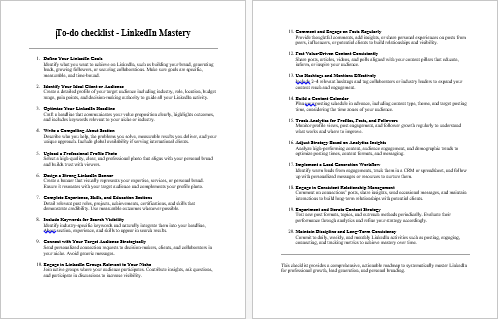
LinkedIn Mastery – Checklist
LinkedIn Mastery – FAQs
LinkedIn Mastery – Salespage Content
Package Details:
Word Count: 31 408 Words
Number of Pages: 134
LinkedIn Mastery – Bonus Content
Checklist
Word Count: 552 words
FAQs
Word Count: 902 words
Salespage Content
Word Count: 782 words
Total Word Count: 33 644 Words
Your PLR License Terms
PERMISSIONS: What Can You Do With These Materials?
Sell the content basically as it is (with some minor tweaks to make it “yours”).
If you are going to claim copyright to anything created with this content, then you must substantially change at 75% of the content to distinguish yourself from other licensees.
Break up the content into small portions to sell as individual reports for $10-$20 each.
Bundle the content with other existing content to create larger products for $47-$97 each.
Setup your own membership site with the content and generate monthly residual payments!
Take the content and convert it into a multiple-week “eclass” that you charge $297-$497 to access!
Use the content to create a “physical” product that you sell for premium prices!
Convert it to audios, videos, membership site content and more.
Excerpt and / or edit portions of the content to give away for free as blog posts, reports, etc. to use as lead magnets, incentives and more!
Create your own original product from it, set it up at a site and “flip” the site for megabucks!
RESTRICTIONS: What Can’t You Do With These Materials?
To protect the value of these products, you may not pass on the rights to your customers. This means that your customers may not have PLR rights or reprint / resell rights passed on to them.
You may not pass on any kind of licensing (PLR, reprint / resell, etc.) to ANY offer created from ANY PORTION OF this content that would allow additional people to sell or give away any portion of the content contained in this package.
You may not offer 100% commission to affiliates selling your version / copy of this product. The maximum affiliate commission you may pay out for offers created that include parts of this content is 75%.
You are not permitted to give the complete materials away in their current state for free – they must be sold. They must be excerpted and / or edited to be given away, unless otherwise noted. Example: You ARE permitted to excerpt portions of content for blog posts, lead magnets, etc.
You may not add this content to any part of an existing customer order that would not require them to make an additional purchase. (IE You cannot add it to a package, membership site, etc. that customers have ALREADY paid for.)
Share Now!
Latest Products

Free Sales Funnel Builder

Related Products
Popular & Trending


Featured Products